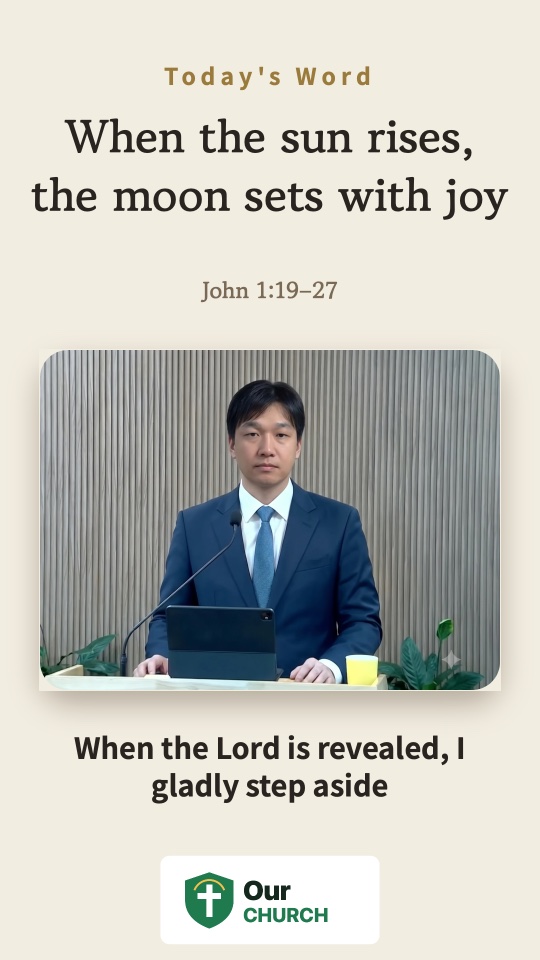
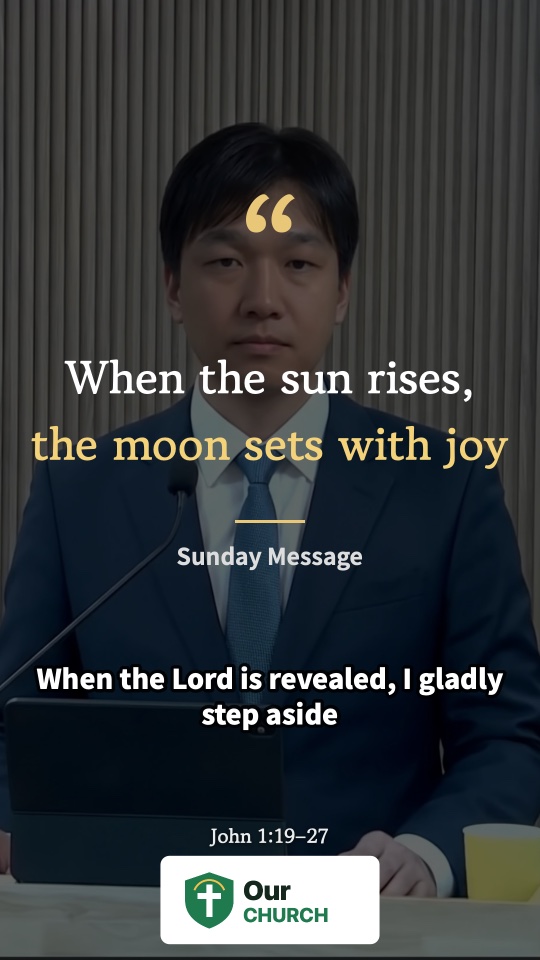
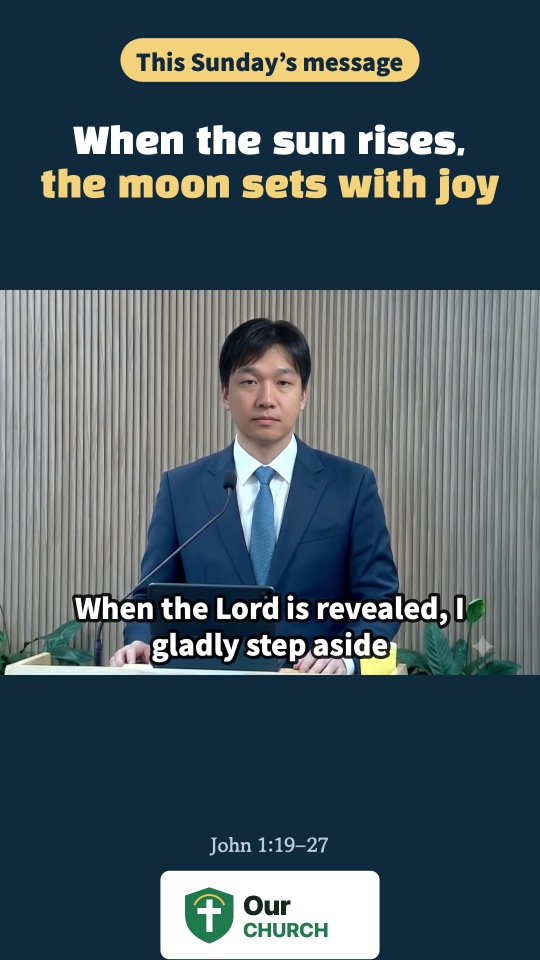
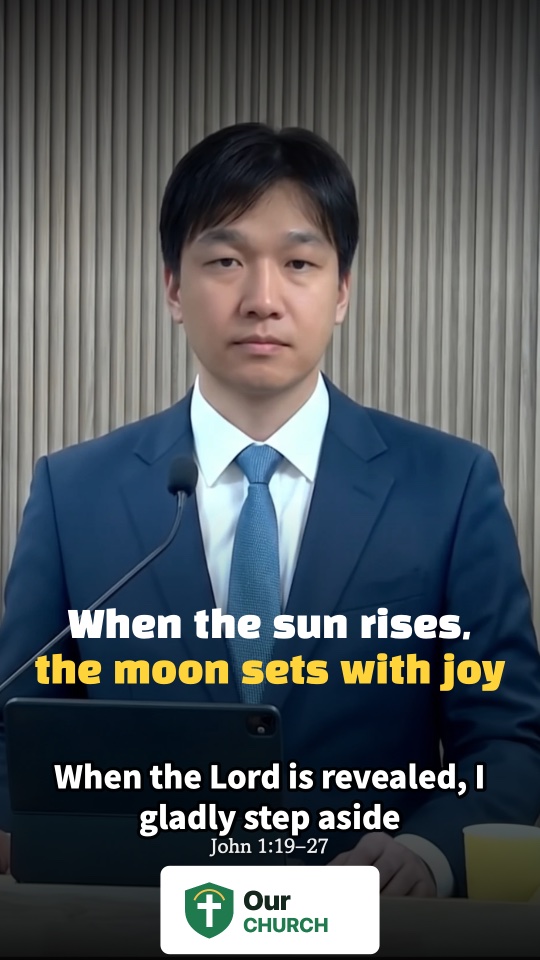
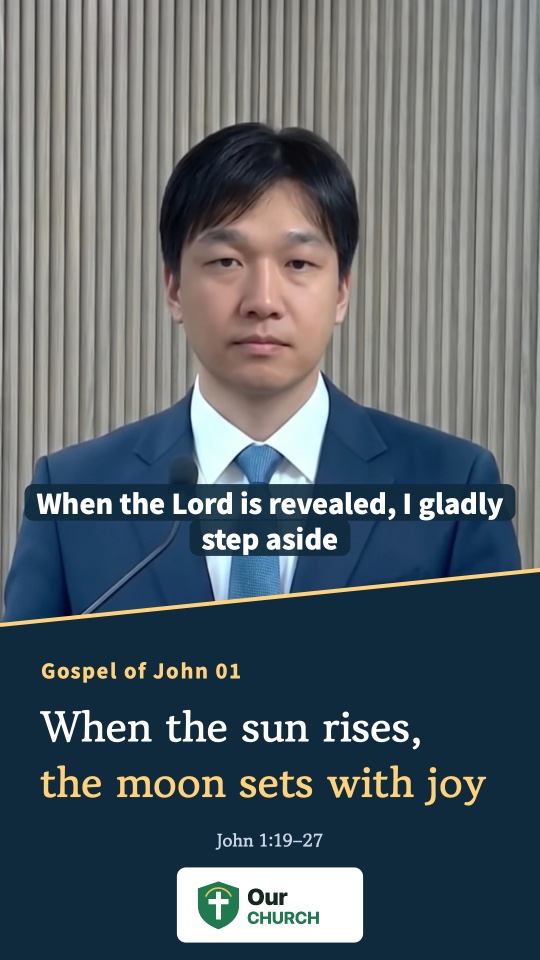
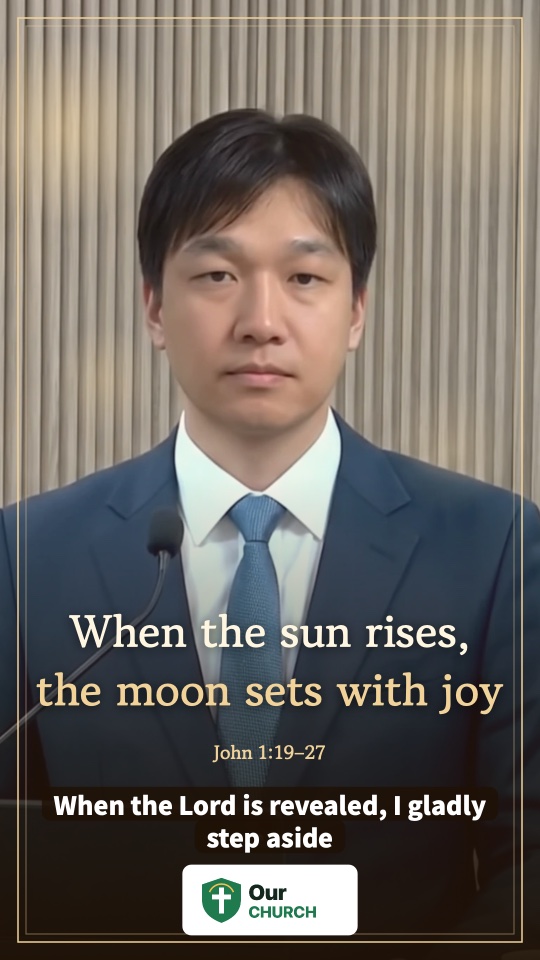
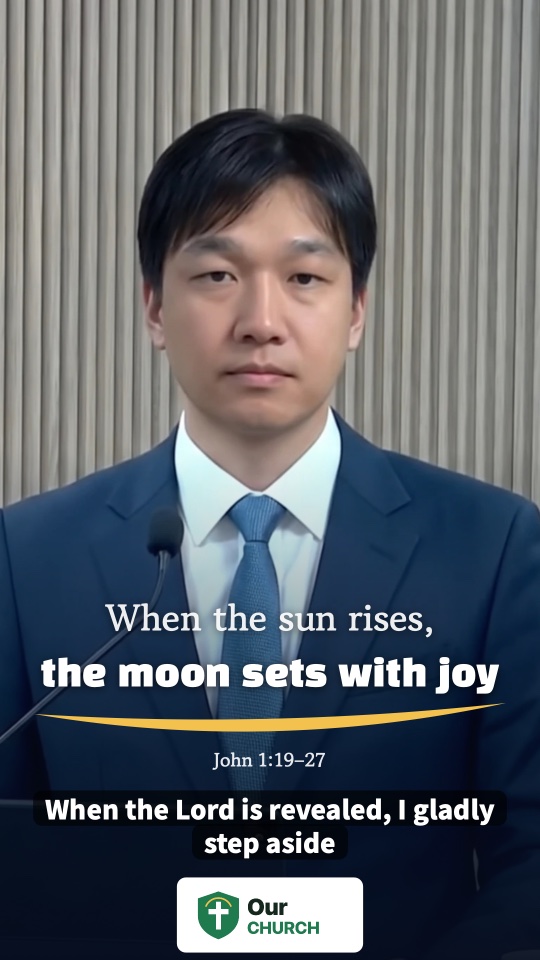
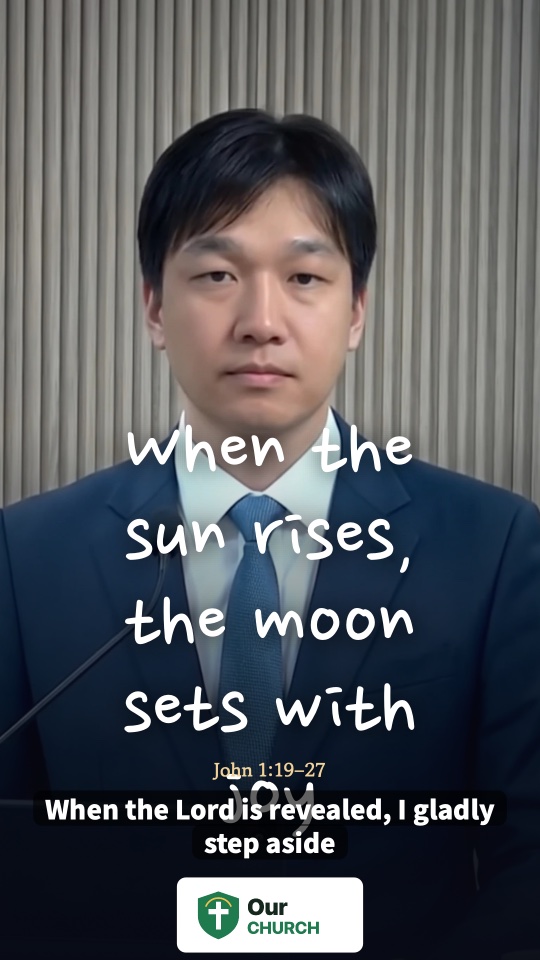
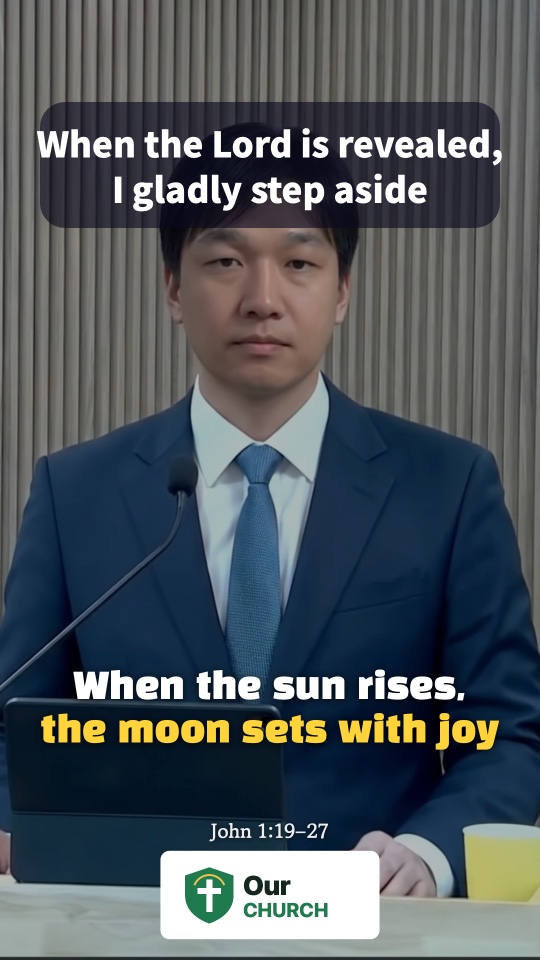
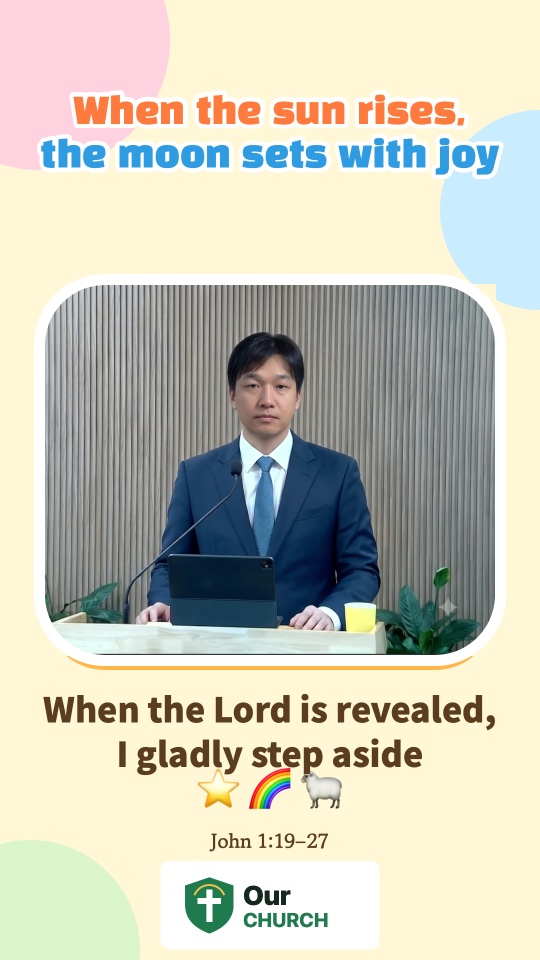
NEW Namun Jogak 2.0.20 · new design

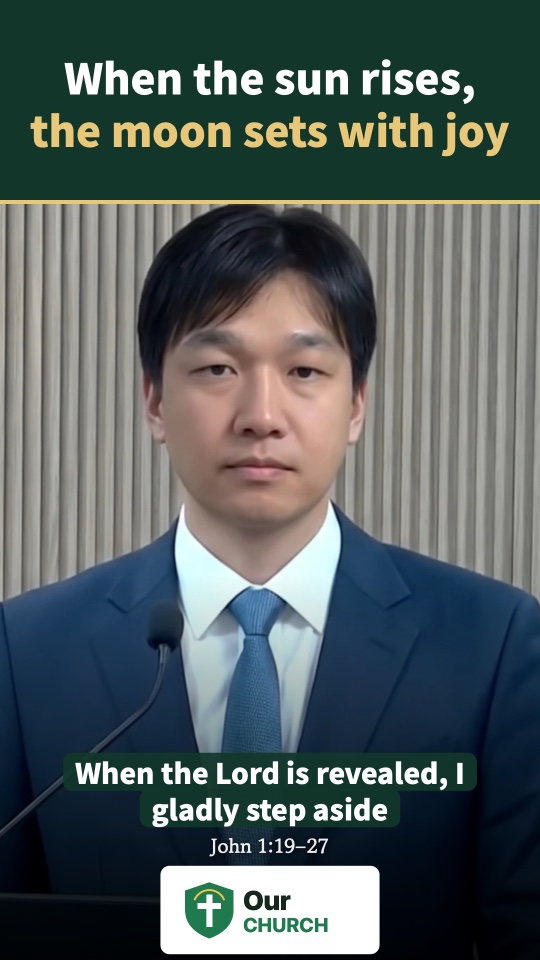
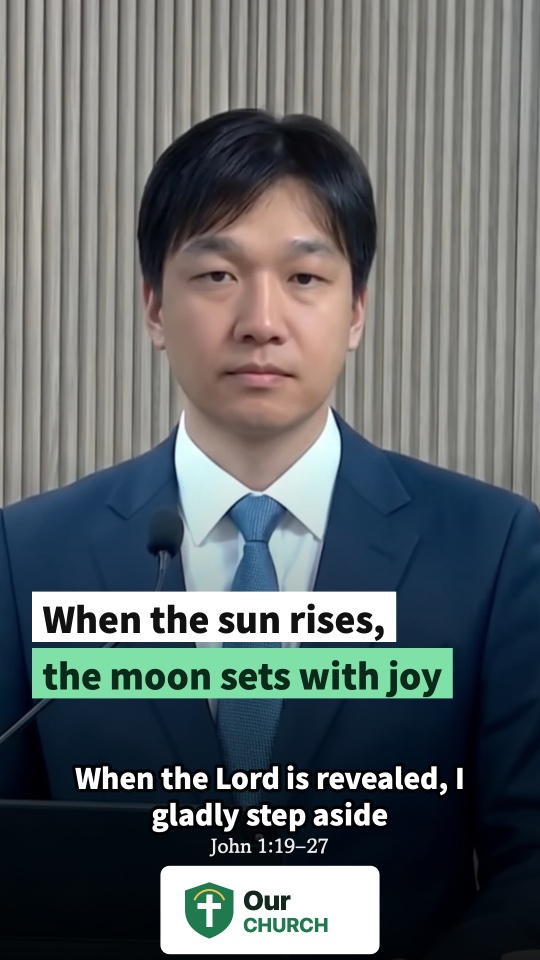
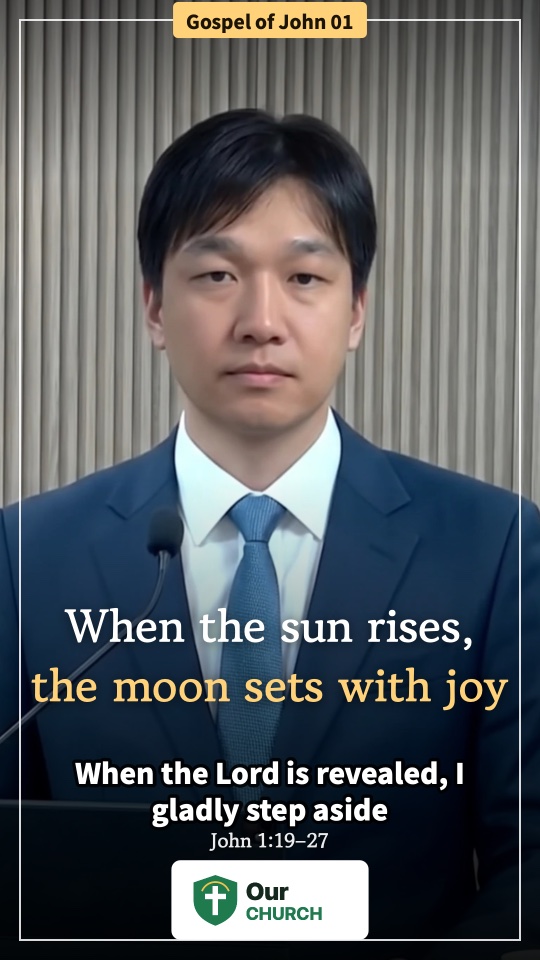
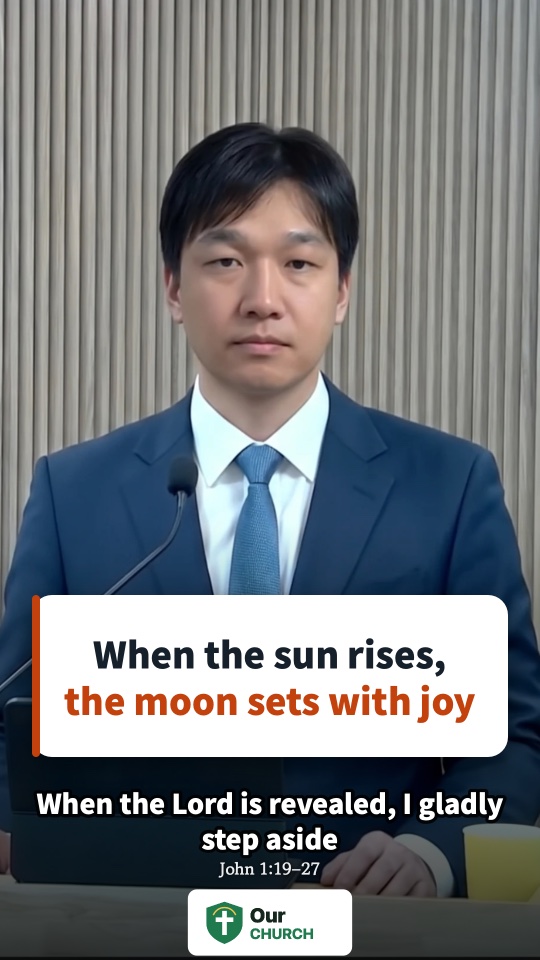
Add a video, get six finished Shorts.
Polish and finish right there.

Drop in a sermon video and it transcribes and builds six finished Shorts — title, captions, template and music already on. Pick one, polish it in place, then thumbnail · save · YouTube · KakaoTalk share card, in order.

  • ✨ Six finished Shorts
  • ✂️ Lift out to trim
  • 💌 KakaoTalk share card
  • 📅 Schedule a whole week
  • ✍️ Descriptions & hashtags by AI
  • 🖥️ Same on Mac and Windows

10-day free trial · install over 1.0 and your settings, basket and registration stay

Namun Jogak 2.0 pick-a-clip screen
NEW2.0.20new design

Namun Jogak in about a minute

The real app screens of version 1.0 — add a sermon video file, check the clips AI picked, choose a template and make the video. The new 2.0 screens are below.

Made for churches. Buy once.

We compared it with the other ways to make sermon Shorts. Namun Jogak is built for sermons, and it is not a monthly subscription.

Built for sermonsFinds the sermon inside a full service recording and picks moments of grace that follow your tradition and Bible translation settings.
Buy once, keep usingNo monthly fee. From the second year on, it costs nothing more.
Your video stays on your computerTranscription and rendering both happen on your device. Your sermon video is never sent to an outside server.
Ends where the Word landsClips start at the beginning of a sentence and end on the line that closes the thought.
Church name, logo and scripture — automatically56 church templates place your church name or logo and the sermon passage for you.
Hymns included, copyright-safe music41 tracks to use freely, including 15 public-domain hymn piano accompaniments and worship tracks.

Comparison

PriceSermonsSermon · church featuresWhere your video goes
Namun Jogak₩49,000
one-time · 1 device
Built for itSermon clip finder, tradition · Bible translation, scripture · church logo, church templates, hymn accompanimentStays on your computer
Sermon-clip subscription appsabout $39–63 / monthMostly EnglishSermon clips · devotionals · discussion questionsCompany servers
AI Shorts auto-clippersabout $15–29 / monthCaptions, but no sense of a sermonNone (generic video)Company servers
General video editorsFree – about $8–20 / monthCaptions, but no sense of a sermonNone — you pick and design by handCompany servers or computer
Hiring an editorfrom tens of dollars per videoA person does itWhatever you askOriginal sent to the editor

Cost for one year

Making one Short a week for a year (cheapest paid plan)

Namun Jogakabout $35, once
General video editorsabout $96–240
AI Shorts auto-clippersabout $180
Sermon-clip subscription appsabout $468–636

Based on prices published by each service in October 2026. These are ranges for each type of app, not specific products, and prices may change. Namun Jogak’s price is in Korean won (₩49,000 ≈ $35). With the AI-chat paste method, there is no separate AI fee either.

Twelve baskets left over

After five thousand people had eaten their fill, Jesus told his disciples to gather the pieces that were left over. Sunday sermons are like that. A message prepared in prayer mostly stays in the room when the service ends, and by the next week it is often forgotten — even though somewhere inside it is the one sentence that needs to be heard again, the one passage that could lift someone up.

Namun Jogak (“the remaining pieces”) is not a tool for making new messages. It gathers up the Word that has already been shared so that none of it is wasted, and puts it back into the hands of your people and neighbors all week long.

All you need is a sermon video

A full service recording is fine. It finds the sermon on its own.

  1. 1Add videoDrag in or choose a sermon video file your church owns. It is transcribed on your device — Korean, English and other major languages.
  2. 2Pick a clipAI picks about one-minute moments of grace and shows six finished Shorts — title, captions, template and music already on. Like one? Press “Use this”.
  3. 3Polish & finishChange mood, length, trims, title and captions in place, then thumbnail → save video → YouTube (or schedule) → KakaoTalk / bulletin share card.

See the real screens

Version 2.0 has three steps — add video, pick a clip, polish & finish. On the left you always see the Short you are making, and every change shows up right away.
Hover over a picture to zoom in; click to open it full screen.Tap a picture to see it full screen.

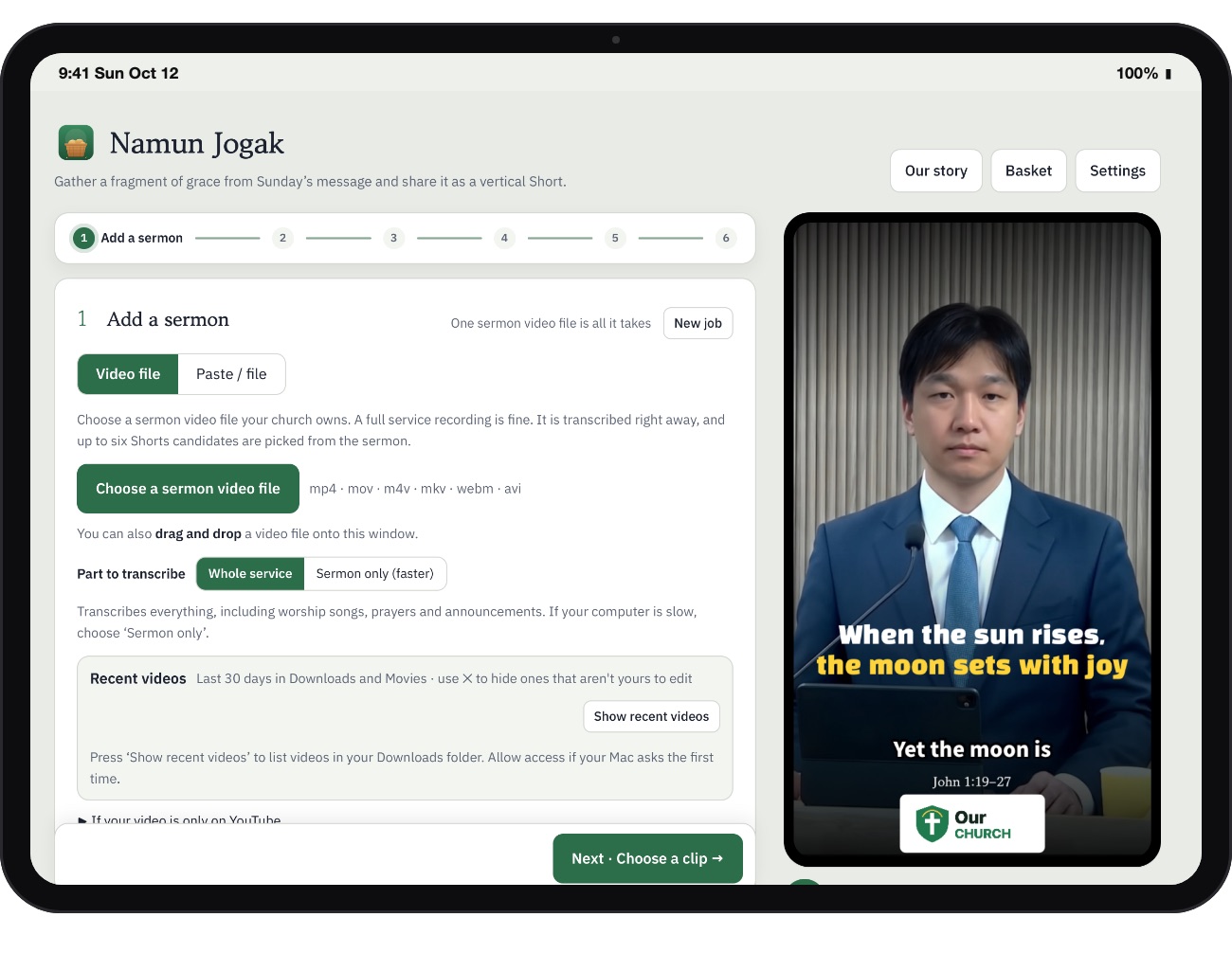
Add video screen
Step 1 · Add video

Drag in your sermon video

Drag a sermon video file your church owns onto the window, or choose it, and the app transcribes it right away. A full service recording is fine. Or just tap a video under “Recent videos” from your Downloads and Movies folders.

Choose what to make, too — six 60-second Shorts, a 1, 2 or 3-minute summary of the whole sermon, or a non-sermon video (testimony, lecture).

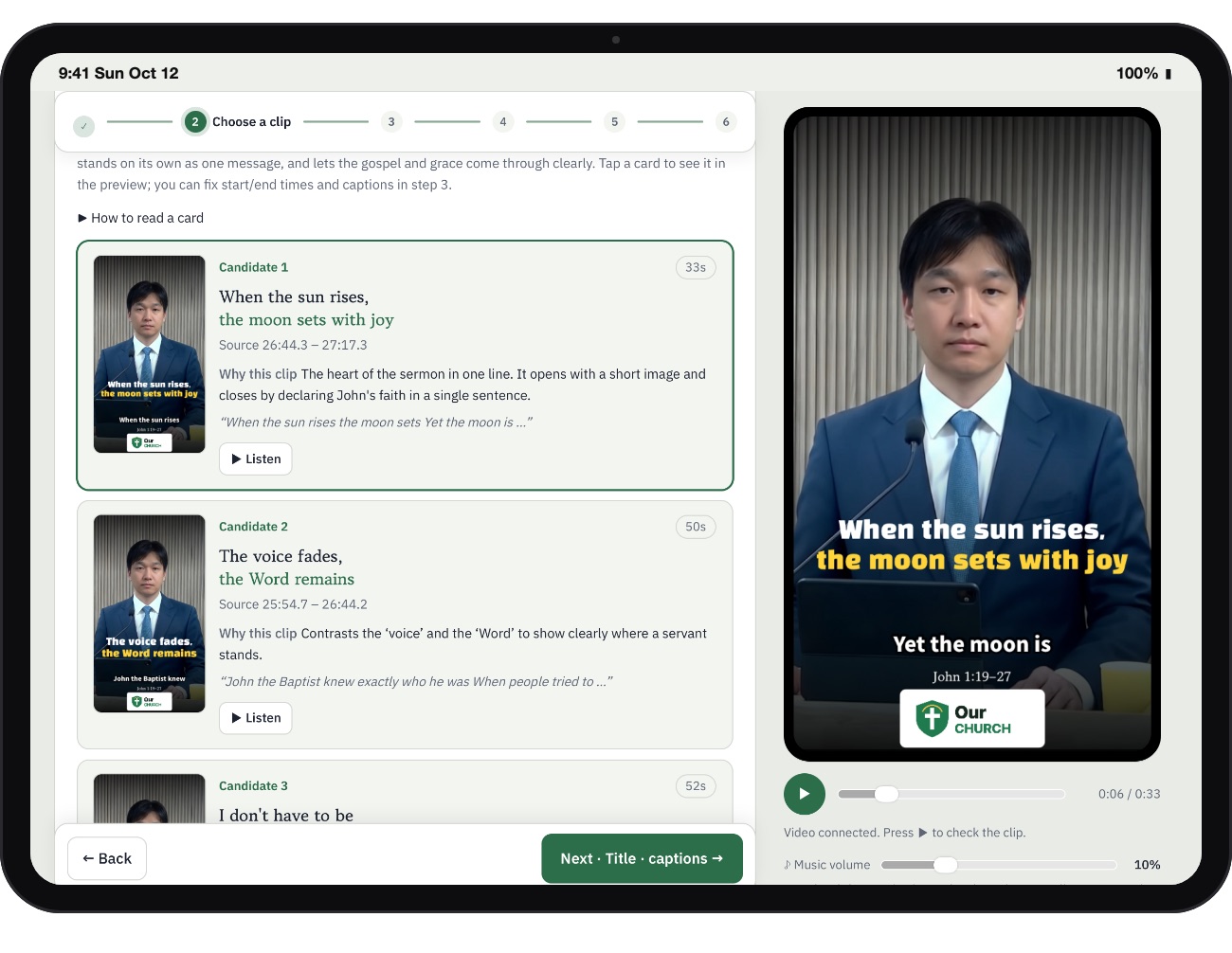
Pick a clip screen
Step 2 · Pick a clip

Moments of grace, already finished

It picks non-overlapping moments worth sharing again and shows six finished Shorts with title, captions, church template and music. Play each card and switch its mood (warm · bold · calm · majestic).

Each clip starts at the beginning of a sentence and ends on the line that closes the thought. Like it? “Use this”. Want to adjust? “Edit”.

Polish screen
Step 3 · Polish & finish

Fix things in place, with a few buttons

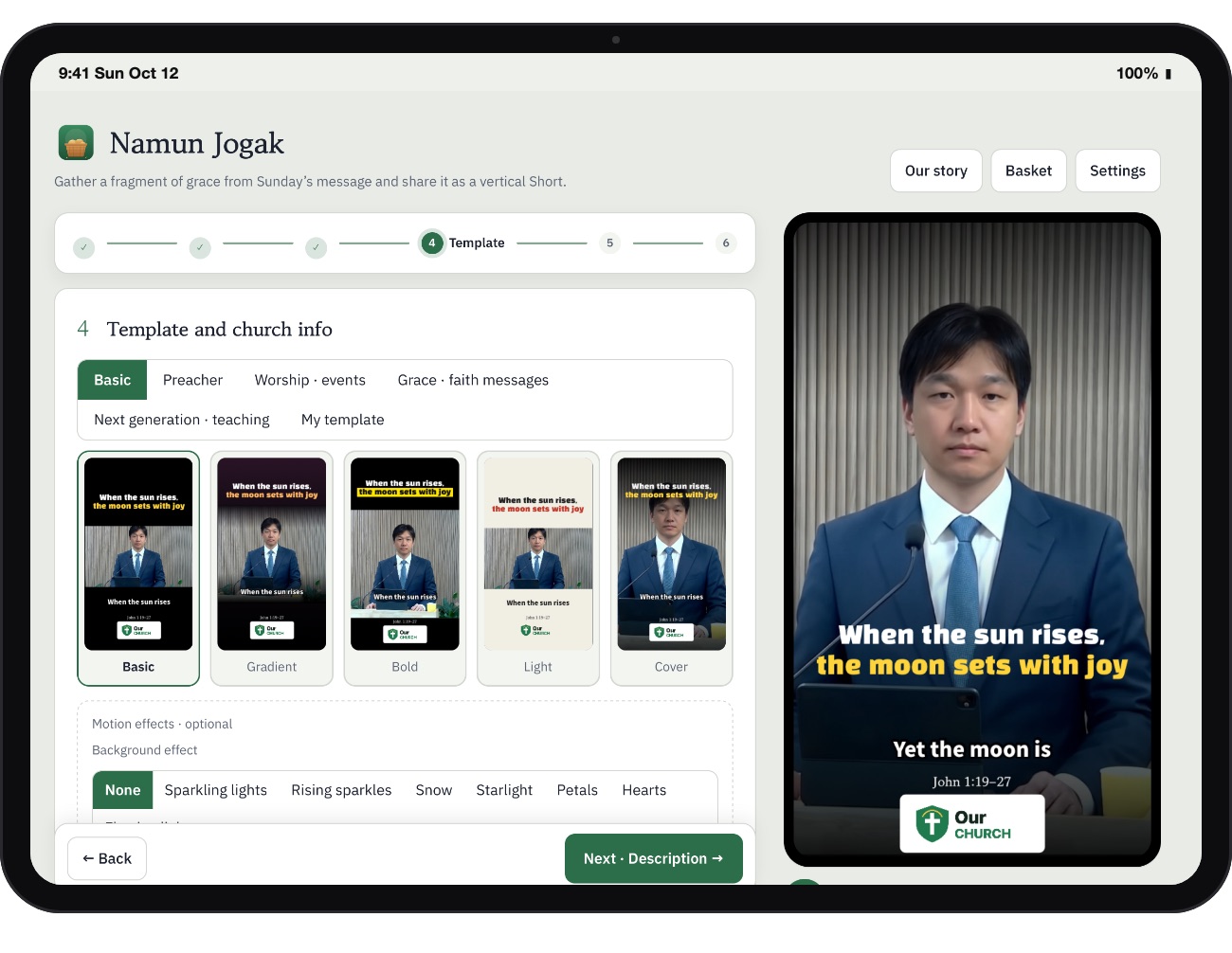
Tap the title or a caption in the preview to fix it, and drag it to move it. One mood card changes template, font, music and caption motion together; “one sentence more / less” sets the length to where the Word lands.

56 templates · 11 title fonts · 41 music tracks including hymn piano accompaniments. Your church logo and the sermon passage go in automatically.

Trim screen
Step 3 · Trim panel

Cut filler and repeats by lifting them out

Mark what to remove on the waveform and words, then drag it up to cut it. “Find filler · repeats (AI)” marks long pauses and repeated words for you. Tap a seam to bring a cut back; cut words disappear from the captions too.

Finish screen
Step 3 · Finish 1–5

Top to bottom — finished steps get a ✓

Choose a thumbnail → caption file (Korean · English SRT) → save video (1080×1920 vertical) → upload to YouTube (now or scheduled) → share on KakaoTalk / bulletin. Skip any step you do not need.

If YouTube is connected, you confirm the channel name before uploading. You can also schedule a whole week — one Short a day at the time you choose.

Share card screen
New · KakaoTalk / bulletin share card

One picture and a message for your members

So members can open the Short right away, it makes a share card with the title, closing line and a QR code, in 52 weekly church-year colors and 6 frames, and writes the message to send with it.

Copy the picture into a KakaoTalk chat or save it for the bulletin. The app never sends anything to KakaoTalk by itself.

Made for ministry

📖AI that follows your churchChoose your tradition and Bible translation, and the AI picks clips where grace is declared clearly, and writes scripture references the way your church does.
⛪Church name · logo · scriptureYour church name or logo sits at the bottom of the Short, with the sermon passage above it. Enter it once and it stays.
🎞️56 templates34 preacher templates (upper body · full body · mood · film tone) plus word cards, one line of grace, Sunday preview, Friday prayer, worship lyrics, Sunday school, youth and seasonal cards. Make your own, too.
🔤11 title fontsFrom bold sans to serif and handwriting. Change the title font on any template. All fonts are free to use.
🧭Finds where the sermon startsEven with a full service recording, it marks the line where the sermon begins and starts there. No more scrolling past worship and prayers.
🎬Smooth 60 fpsIf the original is 60 fps, so is your Short. Sharp at 1080×1920.
✂️AI polishFinds long pauses, repeated words and awkward announcements, and shows them as cuts. Cut words disappear from the captions too.
🪜Three clear stepsAdd video · pick a clip · polish & finish. The step bar shows where you are, and finished steps in Finish get a ✓.
💌KakaoTalk / bulletin share cardOne picture with the title, closing line and a QR code, plus a message, so members can open the Short right away. 52 weekly church-year colors and 6 frames.
▶️One-minute how-to videosThe home screen shows one-minute videos for features you have not tried yet.
🔚Ends where the Word landsAI-picked clips are re-checked against the transcript timing so they start at a sentence and end on the closing line — never cut off mid-word.
✨Caption effects · title stylesPop, bounce, box or fade-in captions; yellow, black or white title boxes or colored text. Tap a word to cut just that word.
🎙️Clearer voice and video (Mac)Reduces room echo and noise so the sermon voice is clear, and sharpens soft video (it cannot redraw a tiny face filmed from far away). Hear and see the change in the preview.
🎵41 copyright-safe tracksFrom quiet meditation to victorious praise, popular Shorts styles, 15 hymn piano accompaniments and 5 worship tracks. Hymns are public-domain melodies played by the app itself.
📅Scheduled YouTube publishingAI writes the title, description and hashtags, and the video goes public at the time you choose — even if your computer is off.
🔒Video stays on your deviceTranscription and rendering happen on your device. Your sermon video is never sent to an outside server.
💬Use the AI you already usePaste into Claude, ChatGPT or Gemini chat — no API key needed. An automatic mode is available too.

Templates for churches

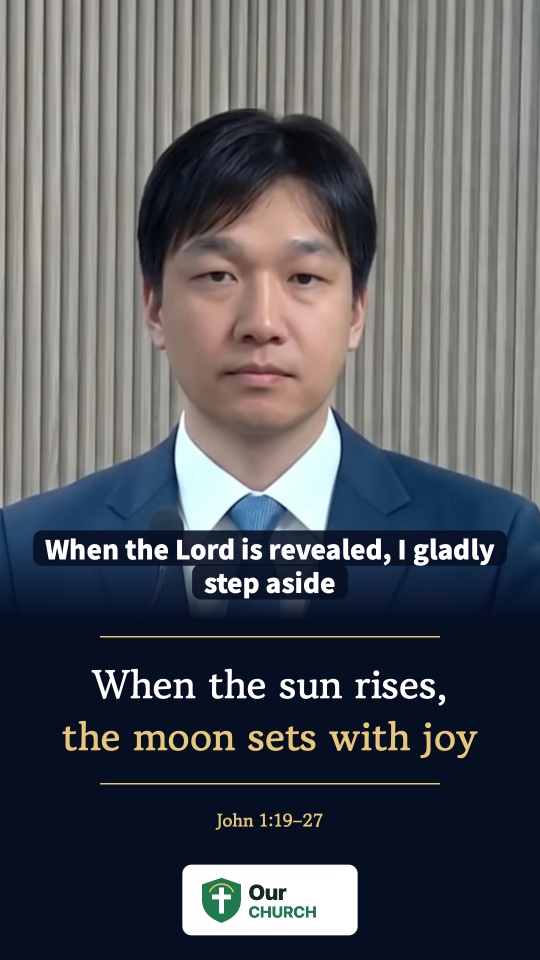
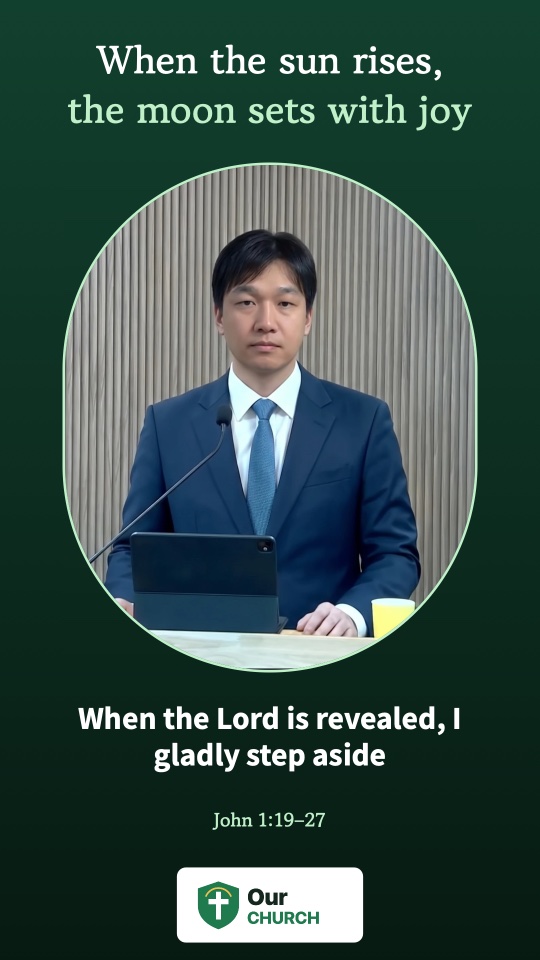
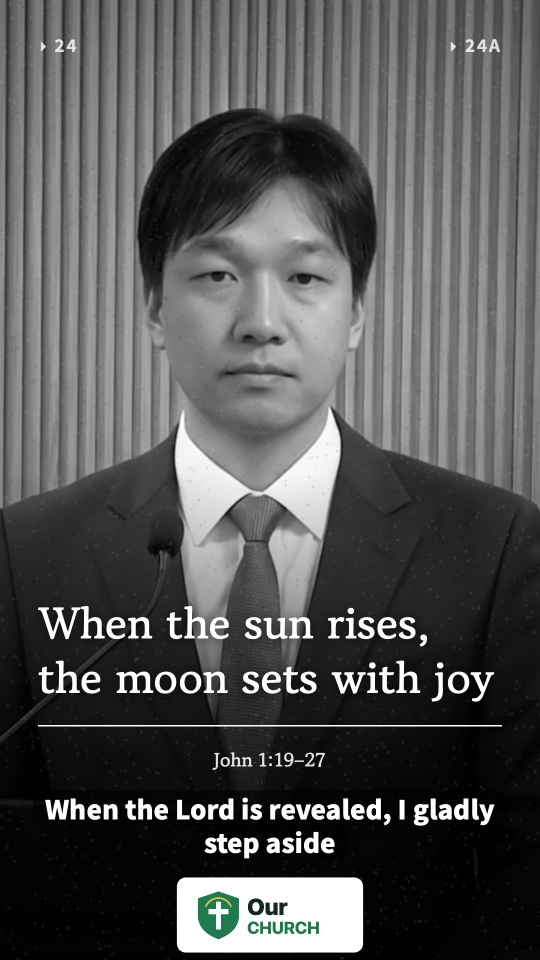
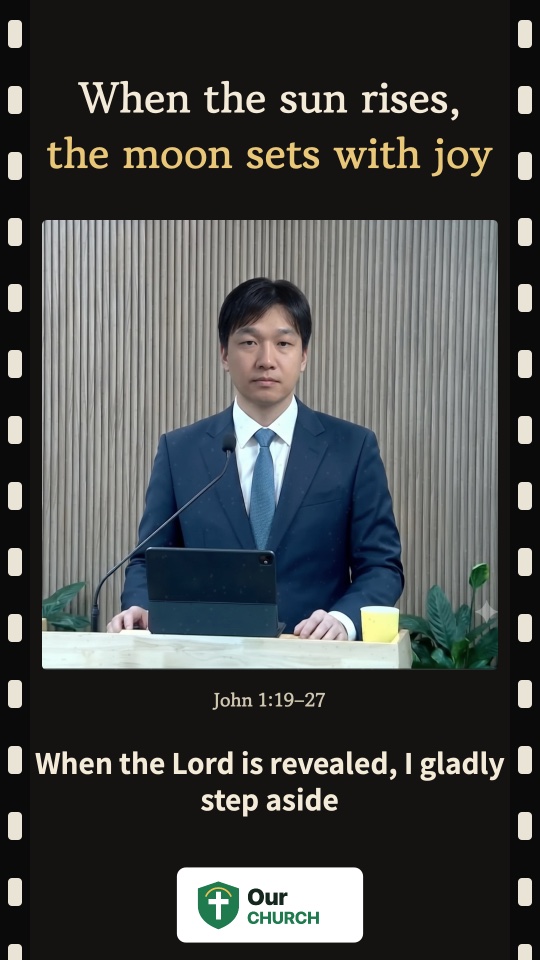
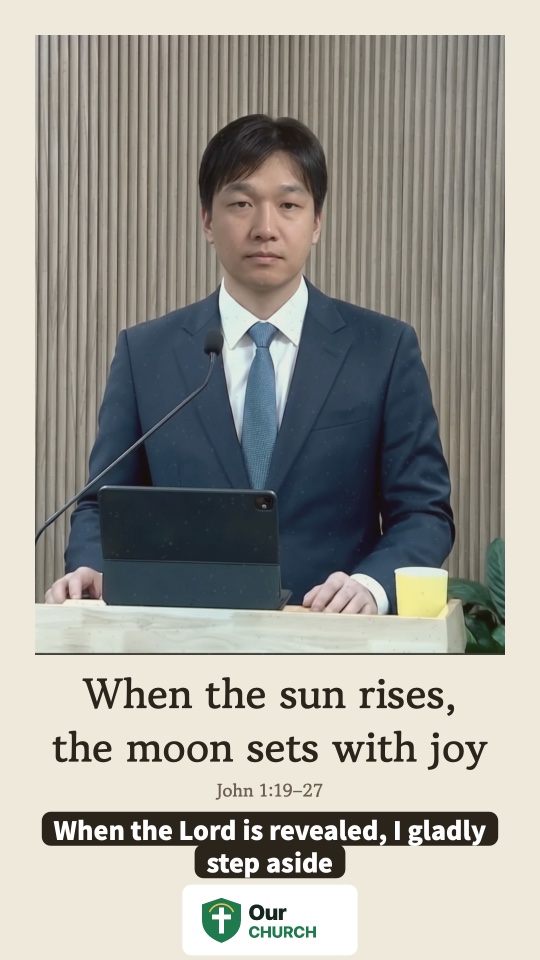
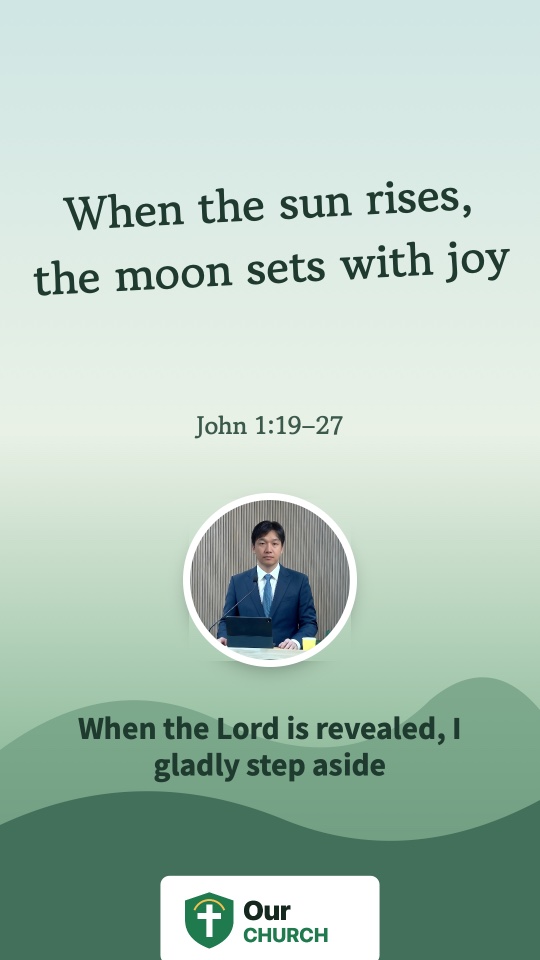
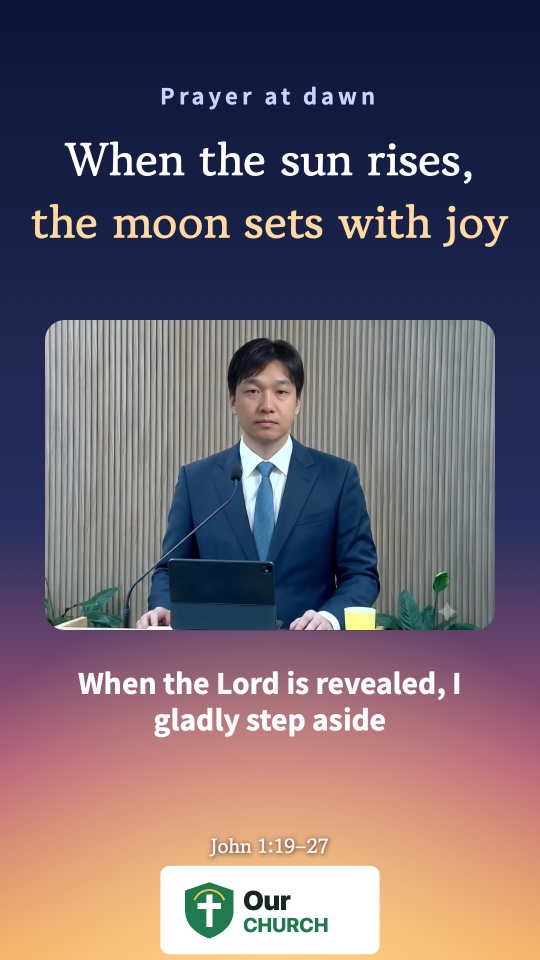
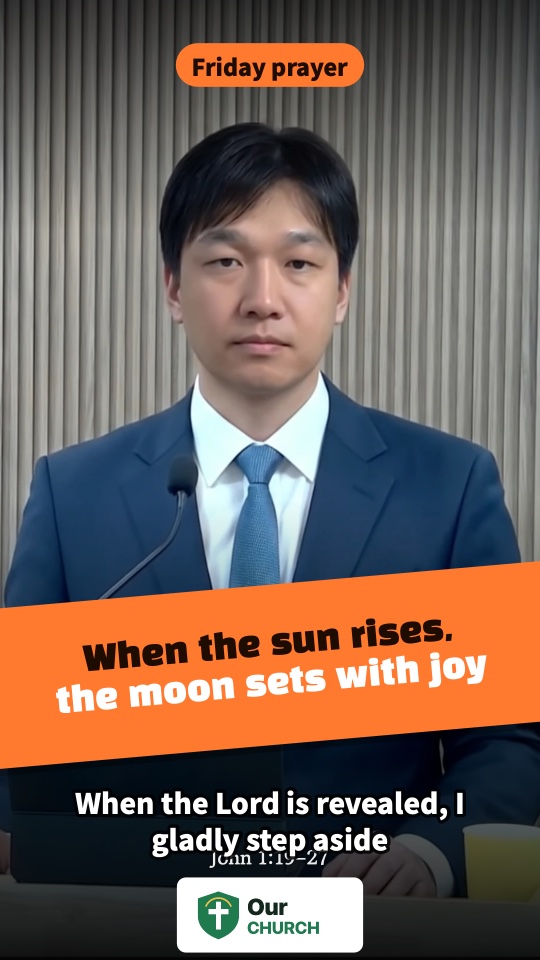
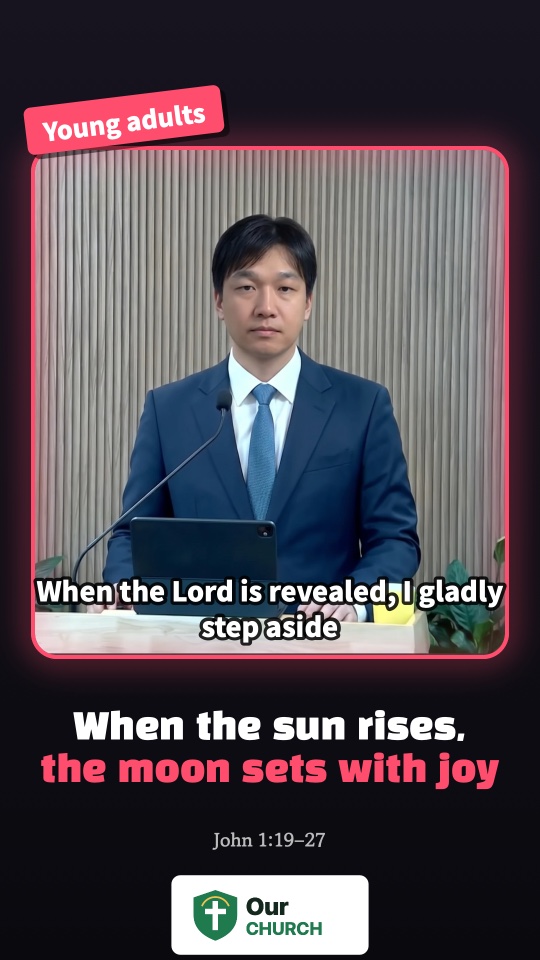
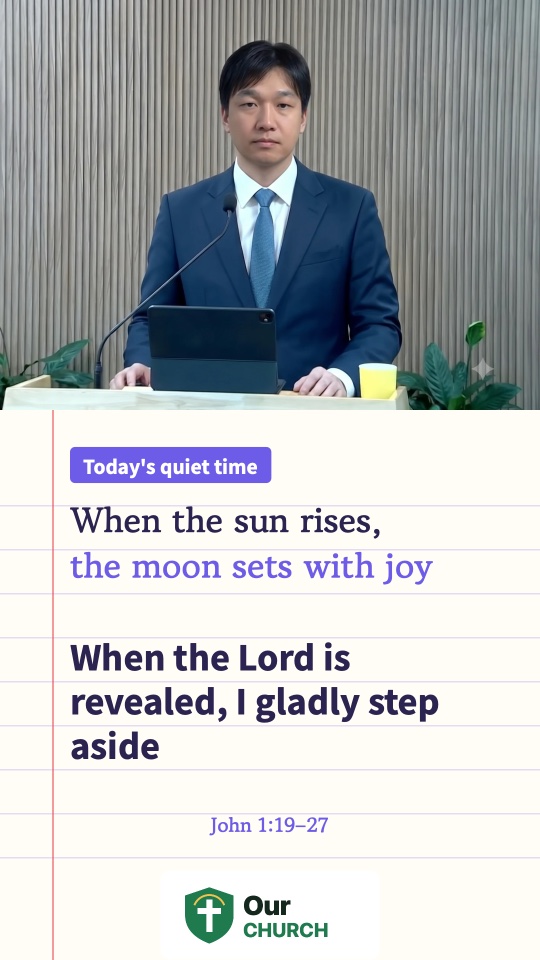
A few of the 56. Swipe sideways. You can add moving light, snow or star effects and emoji, too. (The person and church logo are examples.)

Sermon highlight
Color band title
Highlighter title
Series frame
White card title
Slanted color panel
Gold frame
Brush underline
Brush lettering
Navy panel · gold line
Green round window
Black-and-white film
Film border
Old photo
One line of grace
Word card
Scripture calligraphy
Sunday preview
Dawn prayer
Friday prayer
Worship lyrics
Kids Sunday school
Young adults
Quiet time notebook

✨ Templates keep coming. New templates arrive with updates, ready to use.

Coming soon · App Store

On iPad, in your hands

Sunday afternoon, turn the sermon into Shorts with just an iPad — the same transcription, AI clip suggestions, templates and music as on Mac.
Hover over a picture to zoom in; click to open it full screen.Tap a picture to see it full screen.

iPad screen: start with a sermon video
Start with a sermon video from Photos or Files
iPad screen: six moments of grace picked by AI
Six moments of grace picked by AI
iPad screen: tap a template, see it instantly
Tap a template, see it instantly
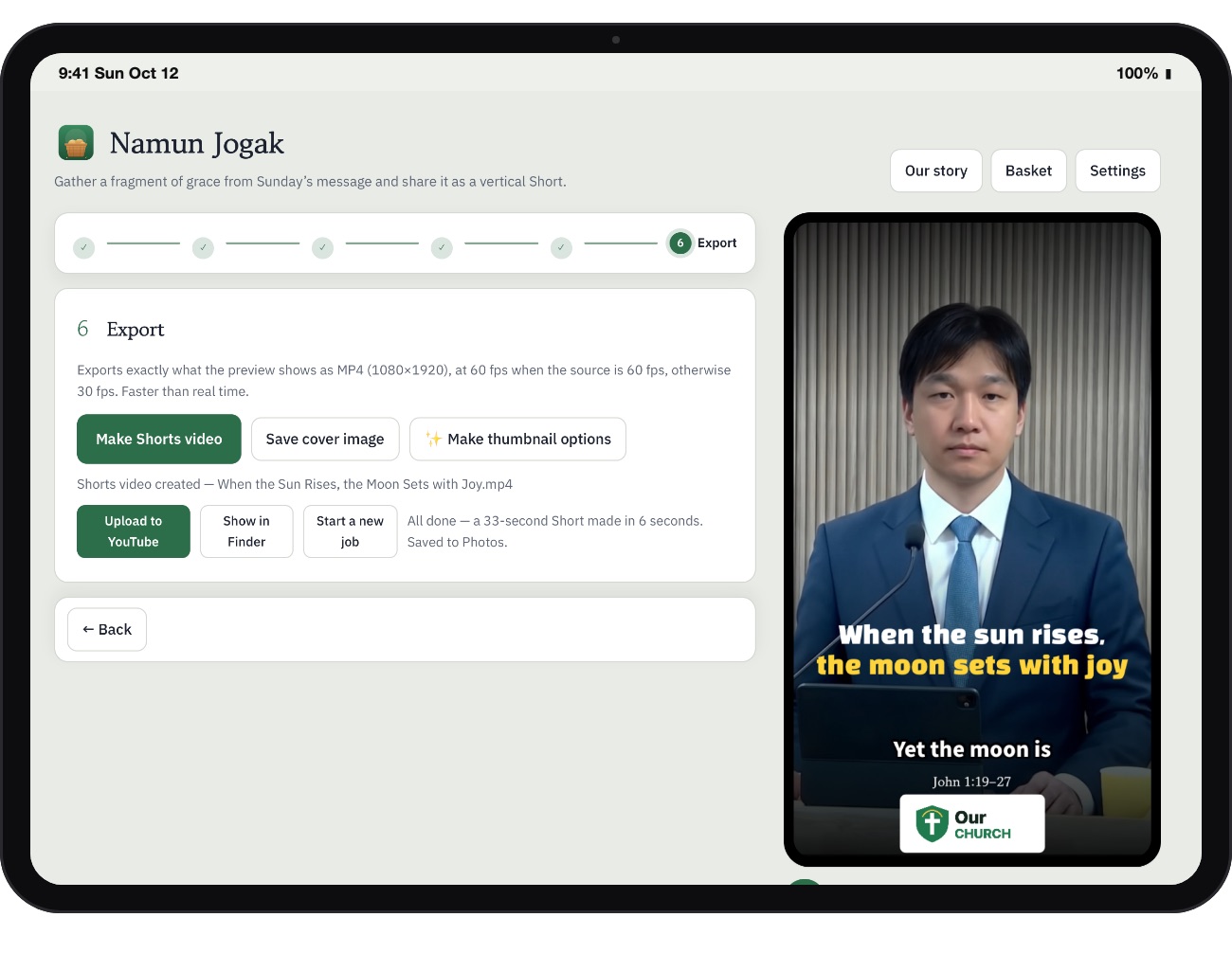
iPad screen: save the Short to Photos or share
Save the Short to Photos or share it

Pre-release preview. The final screens may differ.

Final testing · opening soonNow on Windows

Windows version coming soonThe Windows version is here

Use it the same way on the Windows PCs in your church office and media booth.

  • Same features as Mac — start from a video file, transcription, AI clip suggestions, 56 templates, 41 tracks, scheduled YouTube publishing (clearer voice and video and preacher face tracking are Mac-only)
  • Windows 10 · 11 (64-bit)
  • Transcription and rendering happen only on your PC, just like on Mac
  • Same price as Mac — ₩49,000 · 1 device · one-time · 10-day free trial
  • One installer — no administrator rights needed

If a blue window appears — when “Windows protected your PC” appears, click More info, then Run anyway. It shows once for newly released programs.

Namun Jogak 2.0 running on Windows

Try it free first

Buy once and keep using it. Not a monthly subscription.

Mac · Windows

₩49,000 · same price · 1 device · one-time

  • Start from one sermon video file — transcription to Shorts
  • All templates, effects and music
  • Automatic YouTube upload and scheduled publishing
  • 10-day free trial — preview every template and track, and make videos with 3 templates per group
  • Enter a registration and keep using everything

Email: alma9777a@gmail.com

  1. Download and try for 10 days — Mac: open the file and move the app to your Applications folder; the first-launch warning only needs to be cleared once (install guide, Korean). Apple silicon Mac (M1 or later) · macOS 13 or later. Windows 10 · 11 (64-bit): open the installer; if “Windows protected your PC” appears, click More info → Run anyway.
  2. Email us to buy — write to alma9777a@gmail.com with your name or church, country, and Mac or Windows. We reply with the price and how to pay from your country.
  3. Register — after you pay, open the registration screen in the app and send your request; when you get our confirmation, press Check registration and it is registered on that device. Your work so far stays as it is.

iPad App Store

In-app purchase · coming soon

  • Start from sermon videos in Photos or Files
  • All templates and music
  • Save to Photos · share
  • After the 7-day trial, transcription and editing stay free
🤝 Need help getting started?

Email us and we will walk you through it. For groups of churches, we can arrange an online session. Mac and Windows work the same way.

Email for help

For denominations, organizations or many devices, email alma9777a@gmail.com.

Frequently asked questions

Didn’t find your answer? Ask on our Q&A board and read other churches’ questions.

Is my sermon video sent anywhere?

No. Transcription and rendering both happen on your Mac, PC or iPad. Only when you use AI clip suggestions is the transcript text sent to the AI you choose (Claude, ChatGPT or Gemini).

Does it work with English sermons?

Yes. Transcription works on the device in English, Korean and other major languages (Japanese, Chinese, Spanish, French, German) — choose the speech language in Settings. The app screens are available in English and Korean.

Do I need an AI account or API key?

No. By default you paste a request into the AI chat you already use, so a free account works. There is also a manual mode where you choose the clip yourself without AI.

Can I use worship backing tracks or popular songs?

Copyrighted music can get your Short muted on YouTube or its revenue claimed. All tracks in the app were made by us, so they are safe to use. For trending songs, use “Add sound” in the YouTube app.

What if connecting to YouTube doesn’t work?

To connect — in Settings → YouTube, click Connect. Sign in with the Google account that owns your church channel and click Allow on the permission screen. Namun Jogak has completed Google’s app verification (October 2026).

If uploads fail after connecting — make sure all checkboxes were ticked on the permission screen, then disconnect and connect again in Settings. A Google account without a YouTube channel needs to create a channel first.

If you’d rather not connect — you don’t have to. Upload the Short file yourself in the YouTube app or YouTube Studio, and copy the title, description and hashtags the app wrote.

My uploads go up as “Private”.

Apart from Google’s app verification, YouTube separately reviews an app’s use of YouTube. Until that review finishes, videos uploaded by the app may be set to private. The app tells you when this happens — switch them to public in YouTube Studio. After the review, public and scheduled publishing work as set.

Does my work keep taking up storage?

No. Audio files and transcripts created while working are deleted after 7 days of not being used (you can change this to 3, 14 or 30 days, or turn it off). Your original video files and finished Shorts are never deleted.

Can I start from a YouTube link?

No. Since version 0.9, you start from a video file. Under YouTube’s policies, an app that connects to YouTube (for uploading) cannot also download YouTube videos. For videos on your own channel, download them from YouTube Studio (Content → ⋮ → Download).

Can I use it for church events or Sunday school videos?

Yes. Templates for Sunday previews, Friday prayer, worship lyrics, Sunday school, youth, quiet time, discipleship and retreats are included, and you can rename the labels to your own ministries. For testimonies, lectures or interviews, choose 6 general clips and AI picks the most moving moments without sermon rules.

How do I pay from outside Korea?

Email alma9777a@gmail.com with your country and Mac or Windows. We will reply with the price and a way to pay that works for you.

About the YouTube connection

To use “Upload to YouTube”, you sign in with your own Google account and grant permission. The app uses this permission only to upload the Short you select to your own channel, with the title, description, privacy setting and optional scheduled publish time you enter, and to show the channel name it will upload to. Tokens are stored only in your device’s secure credential store (Keychain on macOS/iPadOS, Credential Manager on Windows) and are never sent to our servers. By using this feature you agree to the YouTube Terms of Service; the Google Privacy Policy also applies. See our Privacy Policy. You can disconnect at any time in the app’s Settings.

Looking for a version for any kind of long video (talks, lectures, podcasts)? See SnippetCut.